
If you've worked with Active Directory for a while, you probably remember ADTD, Microsoft's Active Directory Topology Diagrammer. You pointed it at a domain, and a few minutes later you had Visio diagrams of your sites, replication and domains. It was brilliant, but it stopped in 2011.
ADTD only understands Windows Server up to 2008 R2 and Exchange 2010. It needs .NET 2.0, draws only in old versions of Visio, and knows nothing about Microsoft Entra ID (Azure AD). So I built a modern replacement: ADTD Modern. It's free on GitHub, and this post walks through what it does and how to use it.
What ADTD Modern does
In one run, ADTD Modern:
- Draws your Active Directory in draw.io (desktop or web, both free): sites, subnets and site links, replication connections, domains and trusts, FSMO roles, application partitions, OUs and GPO links, DFS Replication and Exchange. Visio output is still there if you want it.
- Understands current versions: Windows Server up to 2025 (functional level 10, schema 91), Windows 11, and Exchange up to Exchange Server Subscription Edition. It shows the end-of-support date for every domain controller.
- Runs a security assessment: 58 checks covering health, security and hybrid readiness. Each finding has evidence, why it matters, step-by-step fixes and Microsoft references.
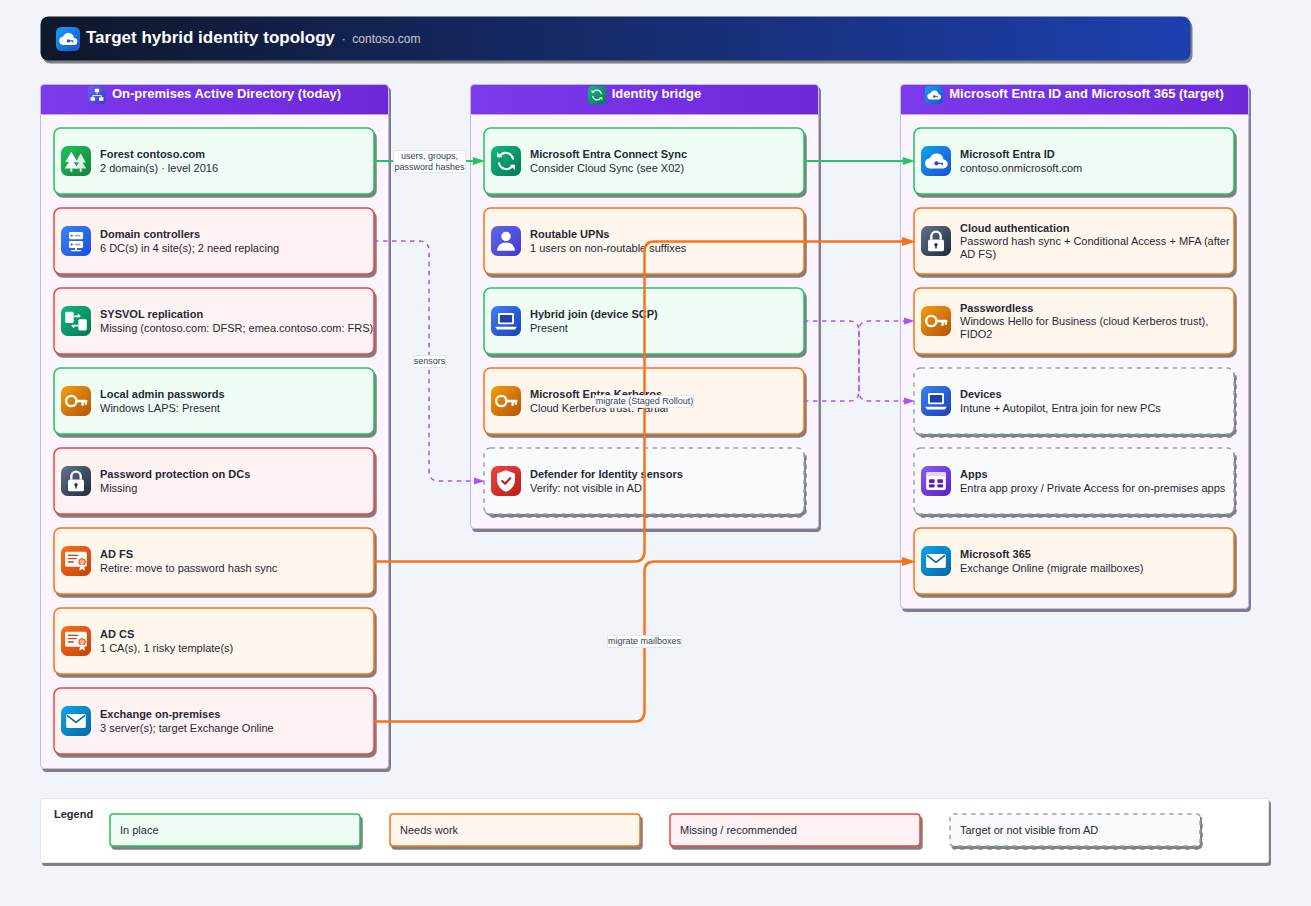
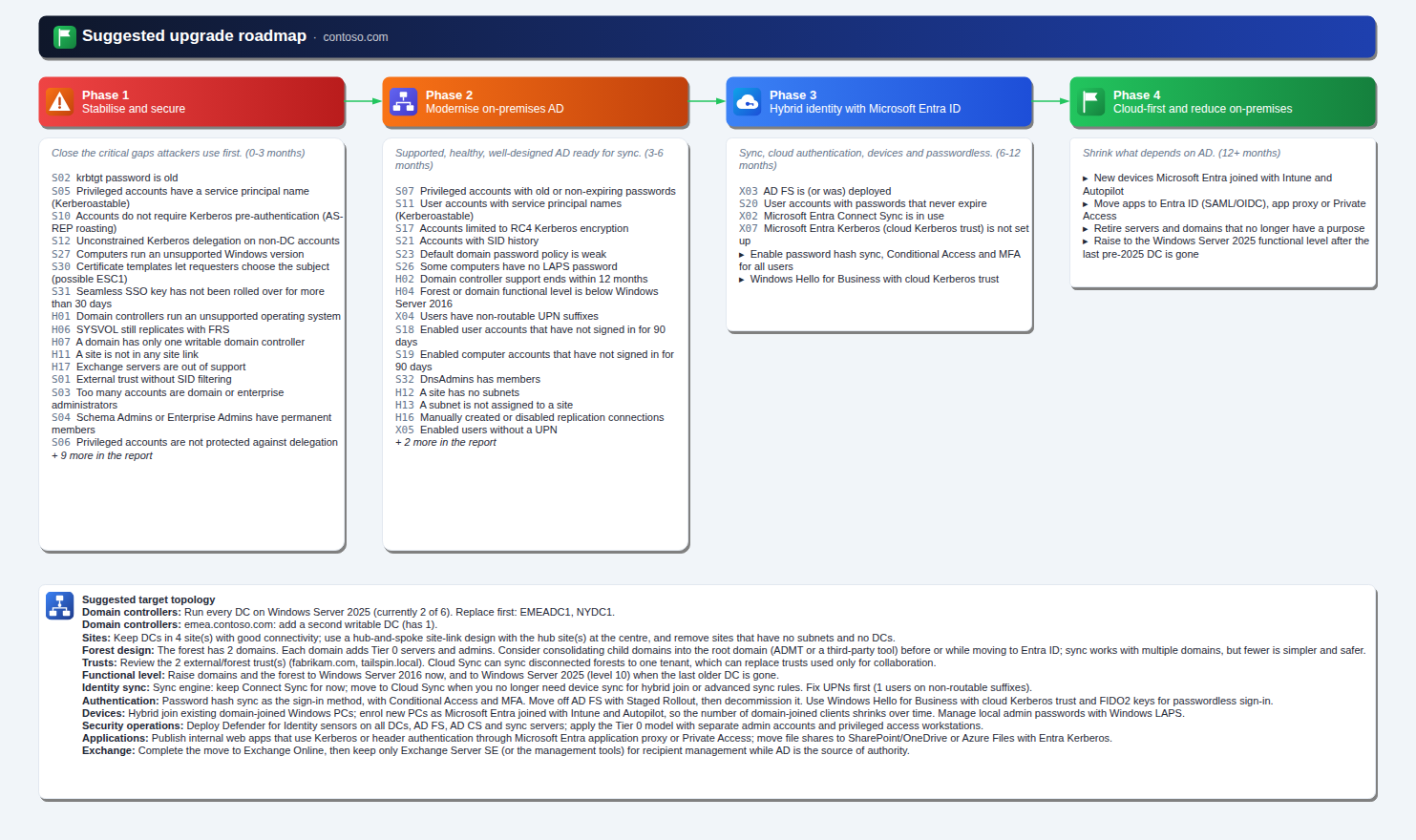
- Plans your move to Microsoft Entra ID hybrid identity: what your on-premises AD is missing, a suggested target topology, and a four-phase upgrade roadmap.
It is read-only. It only runs LDAP searches, never changes anything, and works with an ordinary domain user account. You don't need RSAT or the ActiveDirectory PowerShell module.
A proper Windows app
ADTD Modern installs from an MSI and runs as its own app, with its own icon in the Start menu and on the taskbar. You can pin it to the taskbar, and the installer offers a desktop shortcut. The window takes you through four steps: connect, choose what to draw, choose how to save the results, and watch the progress.
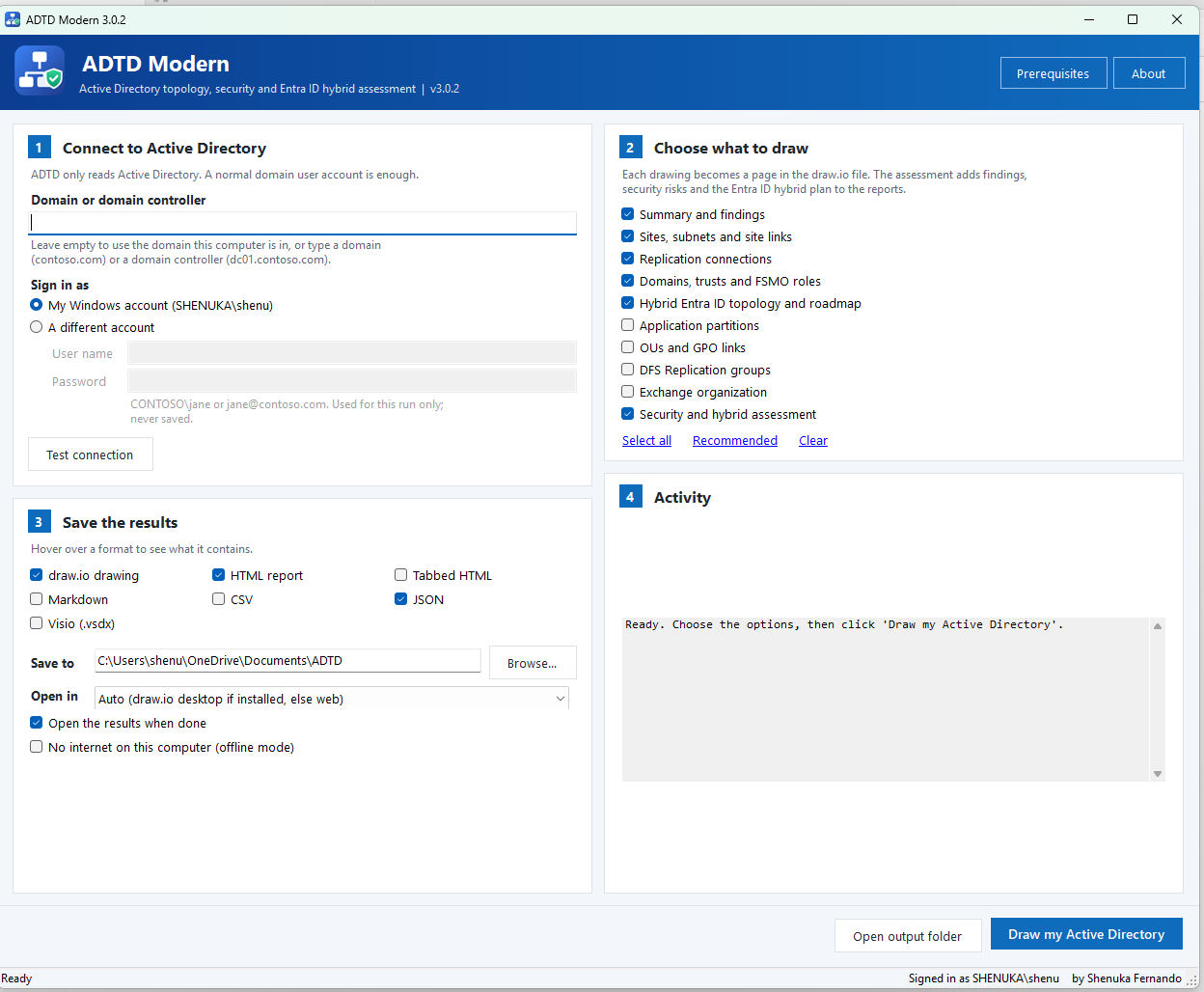
Signing in is simple. Either use your own Windows account, or choose A different account and type a user name and password. That's handy for another forest, or when the computer isn't joined to the domain. The password is used for that run only and never saved. Test connection tells you straight away which domain controller answered.
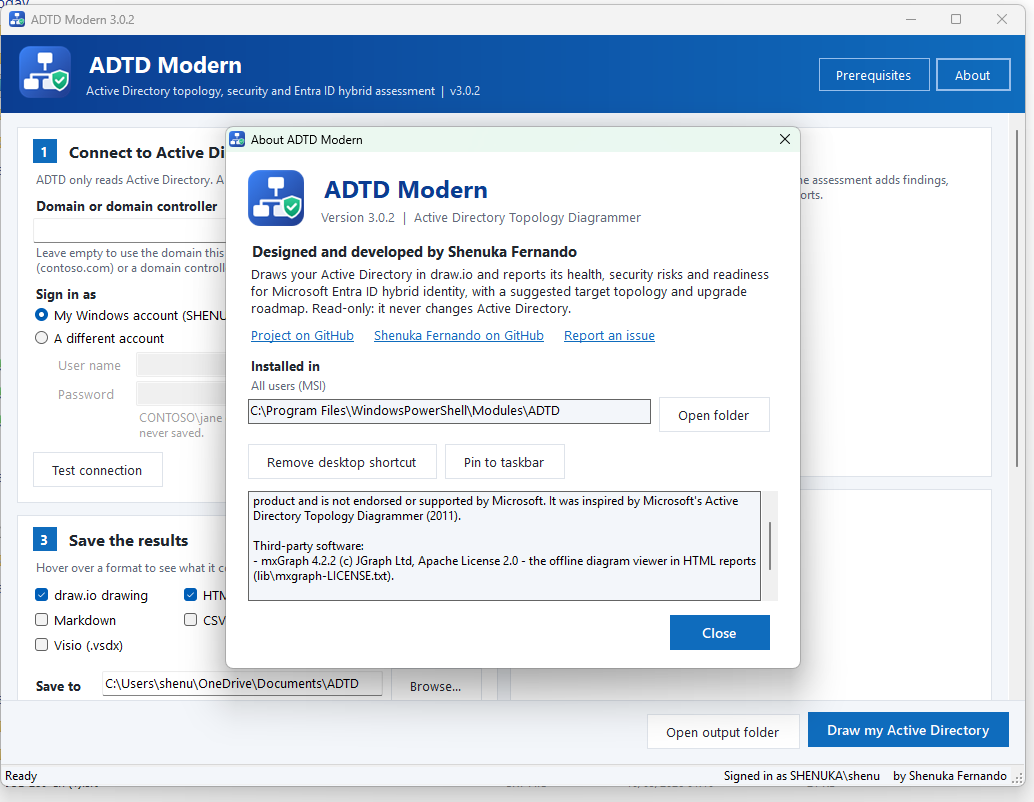
The About box shows where the app is installed, lets you add or remove the desktop shortcut and pin it to the taskbar, and lists the version and notices.
The diagrams
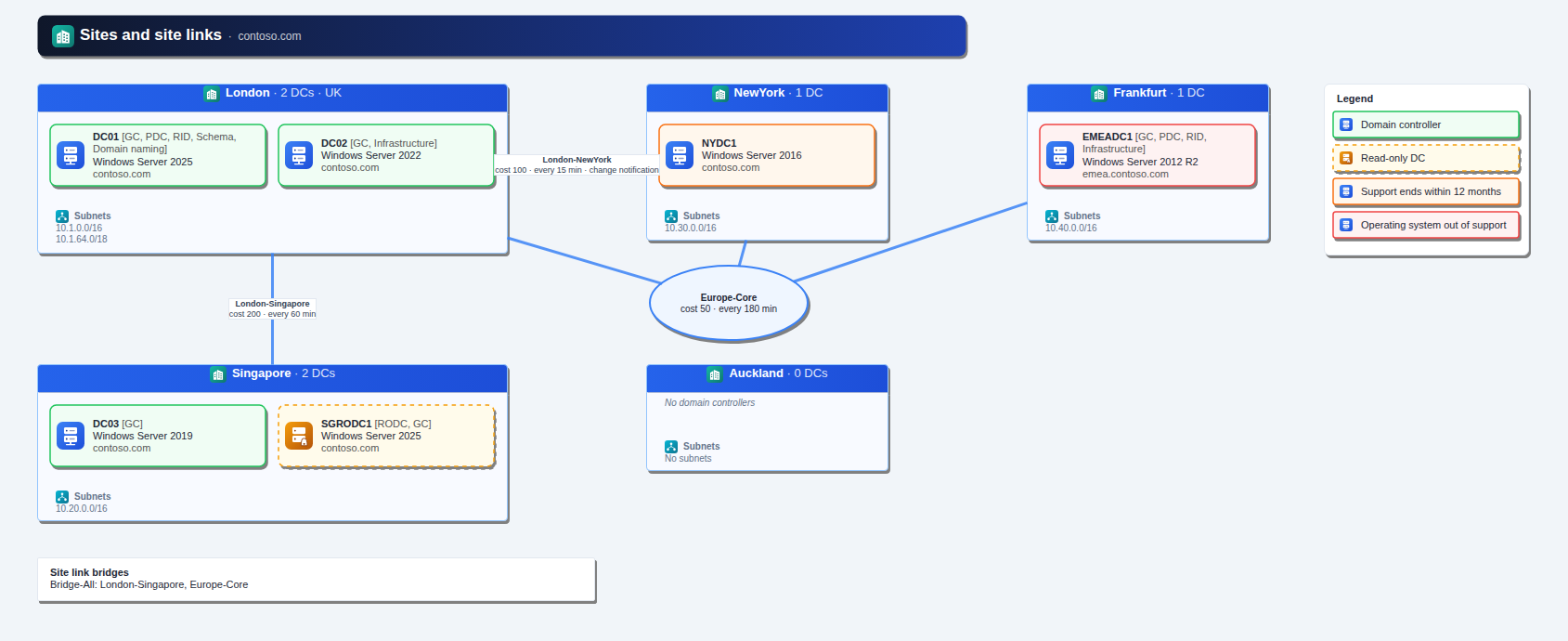
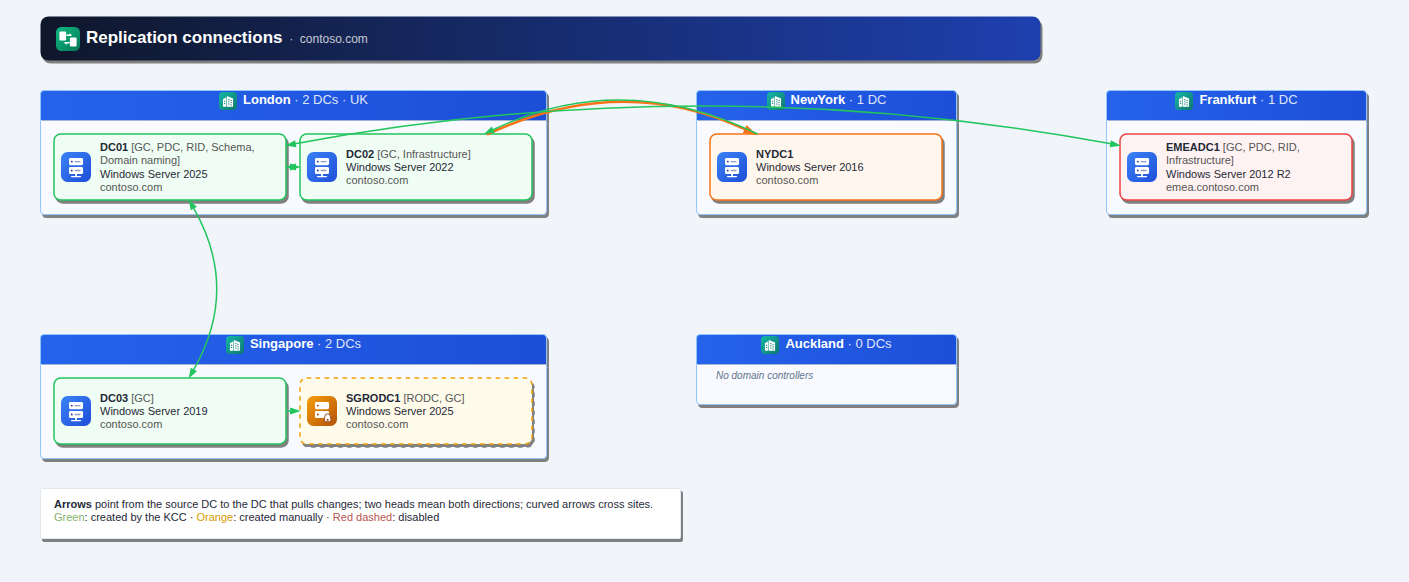
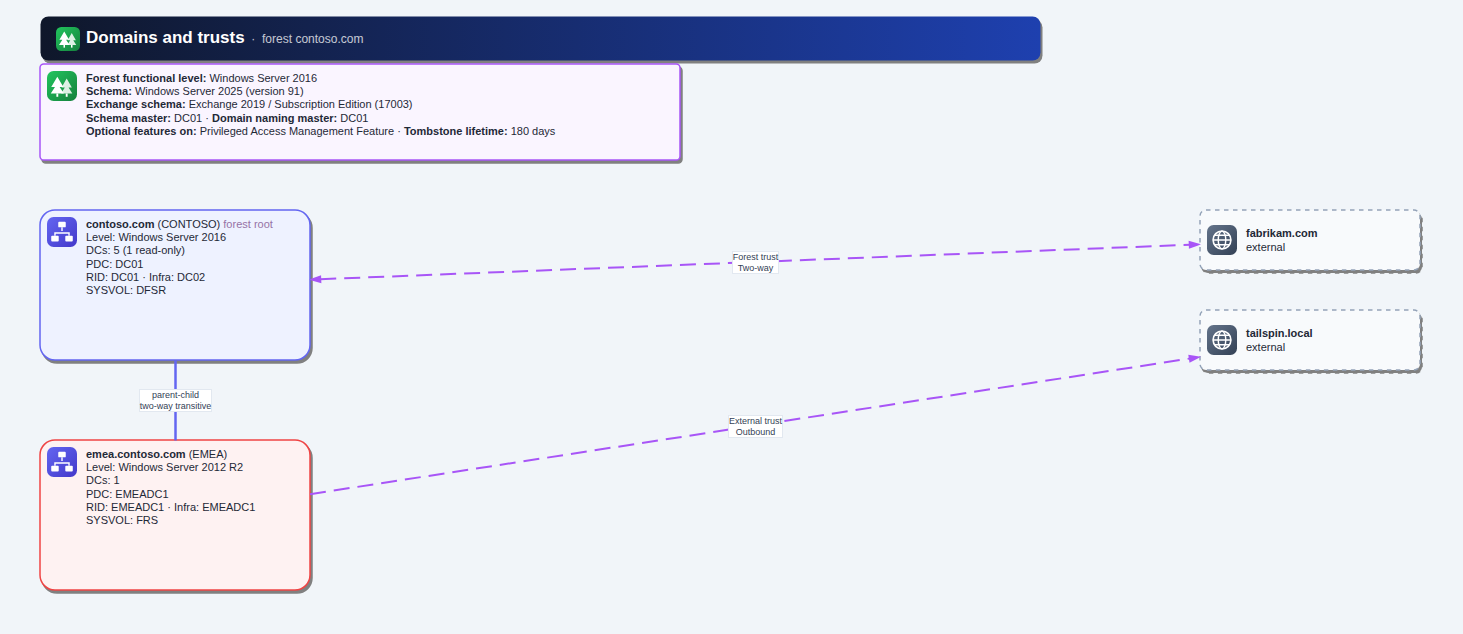
Every drawing is a page in a single .drawio file, using clean icons for domain controllers, sites, domains, Exchange, Entra ID and more. The icons are built into the file, so it looks the same in draw.io desktop, draw.io on the web, and PNG or PDF exports.
The assessment report
Alongside the drawings, ADTD Modern writes an HTML report. You can choose a single long page, which is easy to print, or one file with tabs for the summary, findings, diagrams, the hybrid plan and the inventory. The diagrams in the report work without internet access, because the viewer is built in.
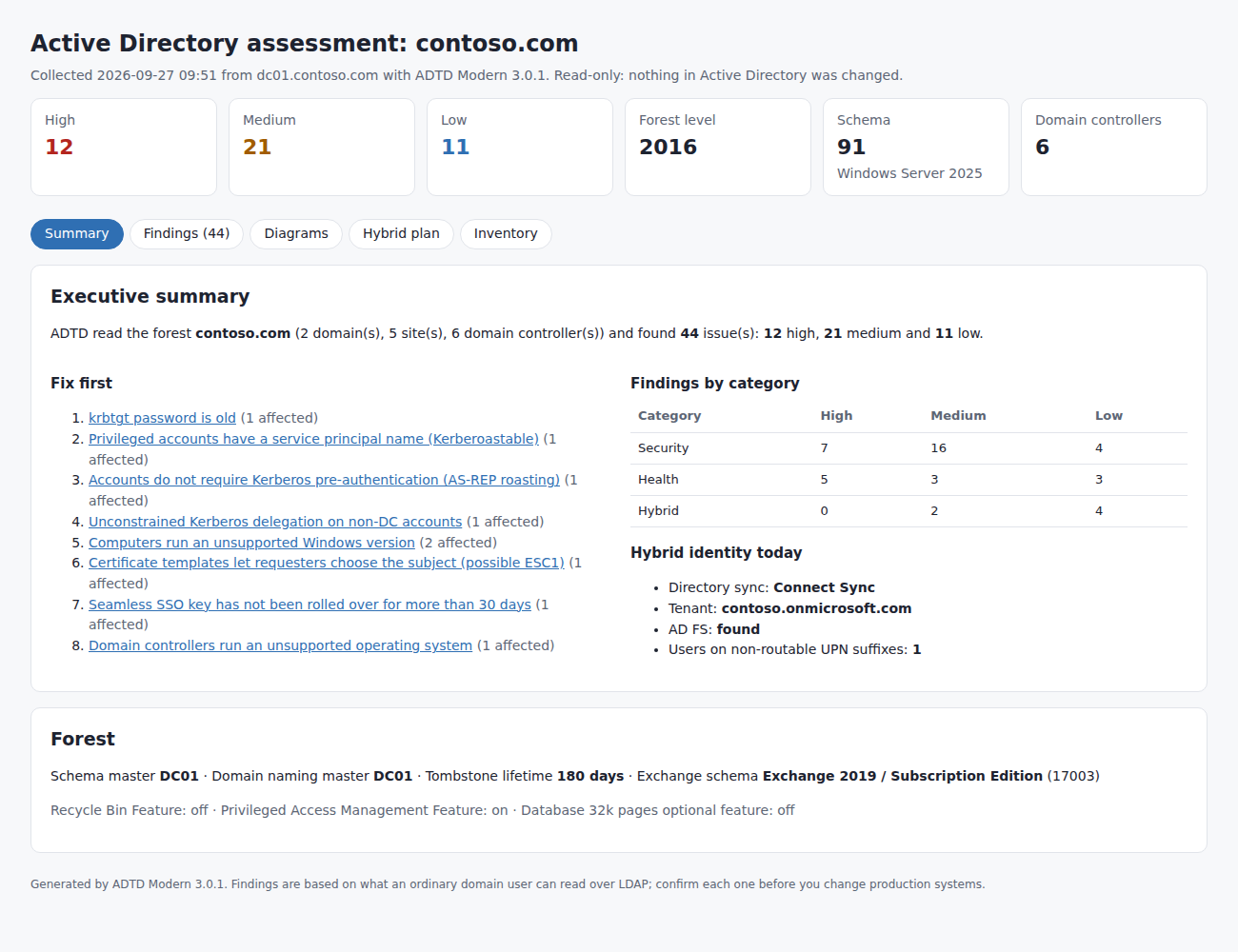
The security checks cover the things attackers actually go after:
- Privileged group membership, and whether admins are in Protected Users
- An old krbtgt password
- Kerberoastable and AS-REP-roastable accounts
- Unconstrained delegation
- RC4 and DES-only accounts
- Stale users and computers
- LAPS coverage
- Unsupported Windows versions
- Machine account quota
- Weak password policy
- Risky AD CS certificate templates
- Seamless SSO key age
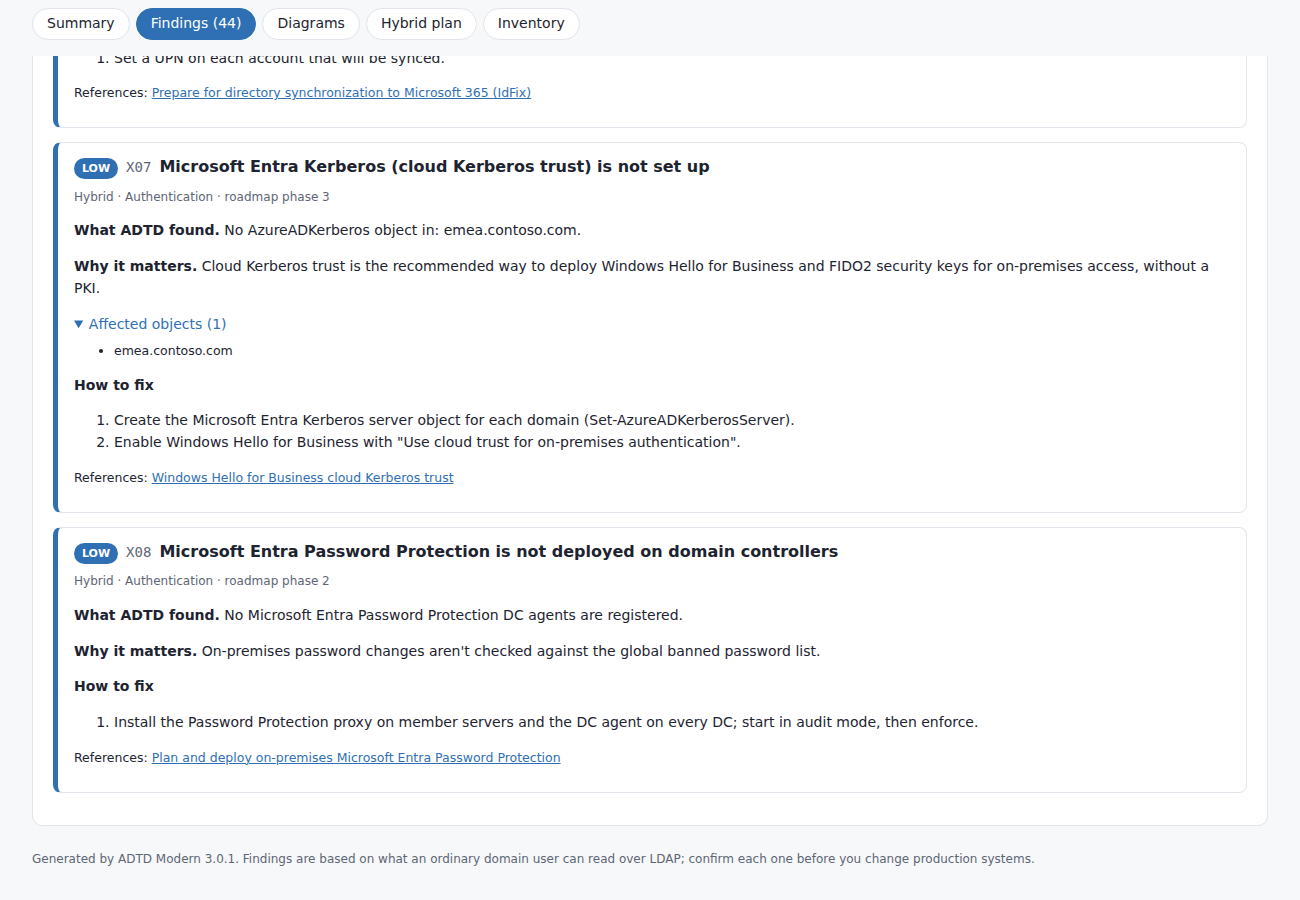
If you prefer working in other tools, it can also write one Markdown report per finding, CSV files for Excel, and a JSON inventory you can redraw or re-assess later.
Moving to Microsoft Entra ID hybrid
This is the part I most wanted. ADTD Modern looks for:
- Entra Connect Sync and Cloud Sync
- Device registration
- Seamless SSO
- Cloud Kerberos trust
- AD FS
- Entra Password Protection
- Non-routable UPN suffixes
From that, it shows what your on-premises AD is missing. It then draws a target hybrid topology and a four-phase upgrade roadmap.
Getting started
- Download the MSI (or the offline zip) from the latest release on GitHub. Right-click it, choose Properties, tick Unblock, then run it.
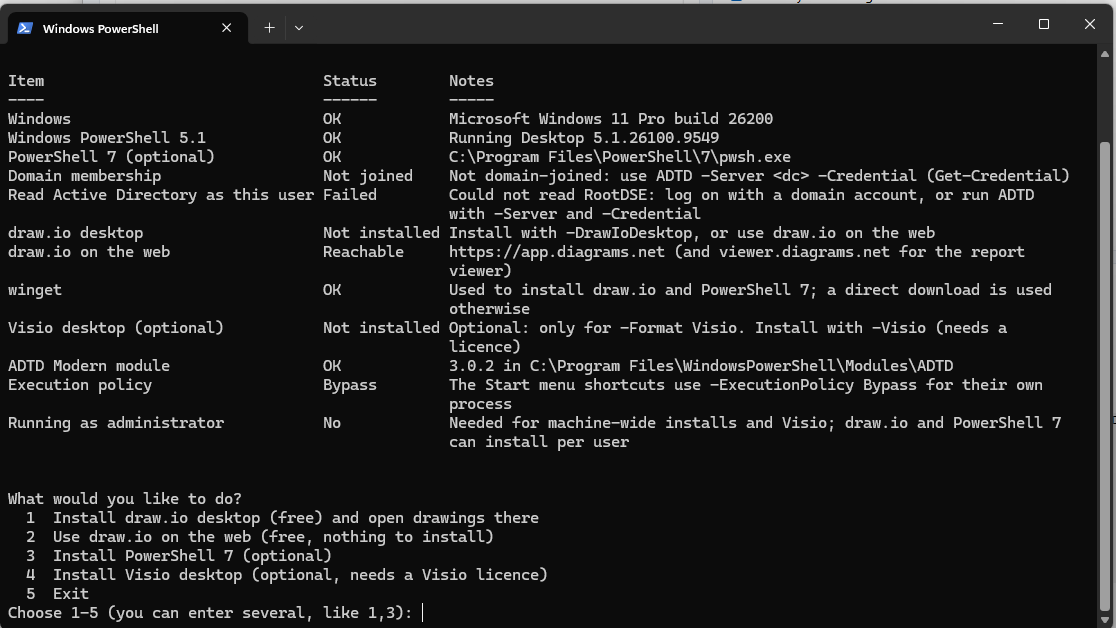
- Prerequisites: open ADTD Modern - Prerequisites from the Start menu. It checks your computer, then installs draw.io desktop, or sets things up so drawings open in draw.io on the web.
- Run: open ADTD Modern, keep the defaults and click Draw my Active Directory. The results go to
Documents\ADTDand open automatically.
What you need:
- A 64-bit Windows 10 or 11, or Windows Server 2016 or later, computer
- Windows PowerShell 5.1, which is built in
- A domain user account
- Network access to a domain controller on TCP 389 and 3268
No admin rights are needed in AD. A domain-joined admin workstation or management server is ideal.
No internet on your servers? Download the offline package from the release. It has the MSI, a START-HERE.txt guide and a folder for the draw.io installer. Tick No internet on this computer in the window, and everything works offline.
Prefer PowerShell? Everything is also available as a command:
Invoke-ADTD -All -Format DrawIo, HtmlTabs, Markdown, Csv, Json -Open
A few honest notes
- So far it has been tested with a built-in test forest (136 automated checks) and on Windows 11. Please try it in a lab before a production forest, and let me know how it goes.
- LDAP can't see everything, such as ACLs, GPO settings or anything inside Entra ID. The report lists those items to check by hand.
- The reports list account names and security weaknesses, so treat them as sensitive documents.
Download: github.com/shenukaf69/ADTD-Modern-3.0/releases
Source and documentation: github.com/shenukaf69/ADTD-Modern-3.0
If it helps you, a star on GitHub is much appreciated, and I'd love to hear what you'd like it to draw next.
ADTD Modern is an independent project by Shenuka Fernando and is not a Microsoft product. Microsoft, Active Directory, Microsoft Entra, Exchange, Visio and Windows Server are trademarks of the Microsoft group of companies. draw.io is a trademark of JGraph Ltd.
Comments
Post a Comment