
Every Microsoft 365 Copilot conversation I have with a client ends with the same question: "So… what's the ROI?"
For a long time my answer was a spreadsheet, a few screenshots and a slide deck I rebuilt by hand for every client. It took half a day, and the numbers were only as consistent as my copy-and-paste.
AI assistants can help, and I use Copilot Chat, Researcher and Cowork skills. But when I asked them for an ROI dashboard, I got a slightly different formula and a different layout each time. That's fine for a one-off. It isn't fine for a number a CFO will question.
So I built my own Model Context Protocol (MCP) server: the Copilot Consultant MCP. It gives an AI assistant a set of consulting tools (readiness, build path, use cases and ROI), plus tools that produce a client-ready dashboard and PowerPoint deck. The maths lives in Python code, so the same inputs always give the same answer.
What the Copilot Consultant MCP does
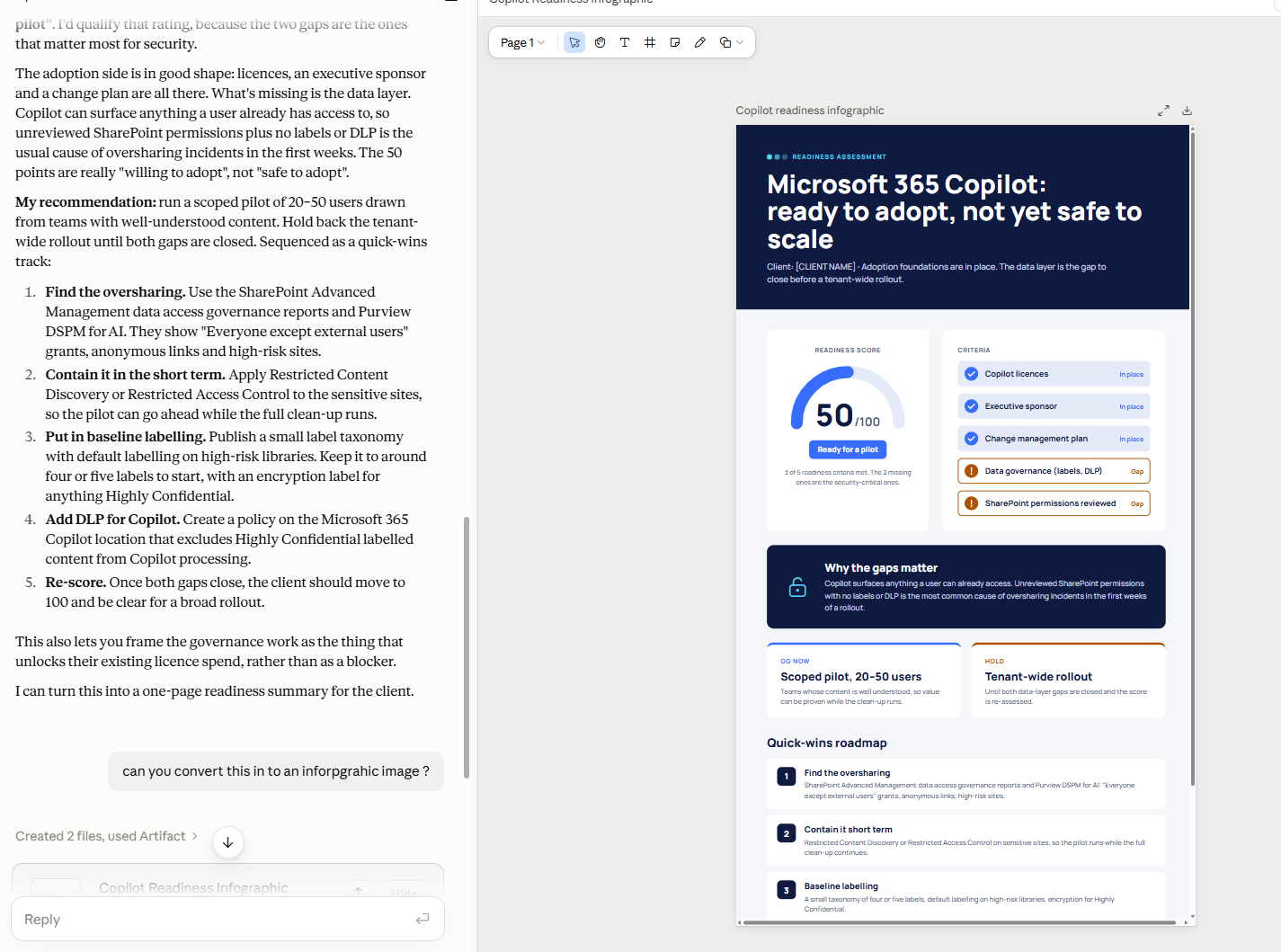
- Scores Copilot readiness out of 100 from five yes/no questions (licences, data governance, SharePoint permissions, executive sponsor, change plan) and lists the gaps.
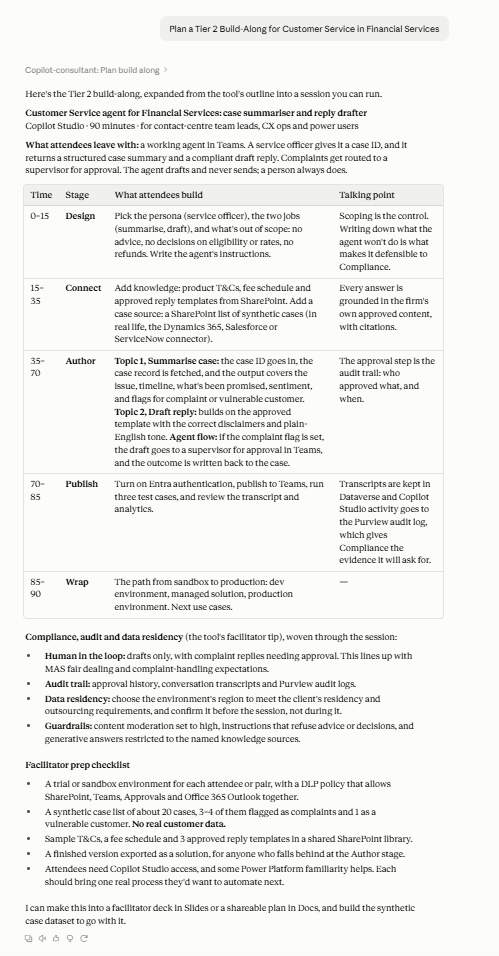
- Recommends a build path: Agent Builder, Copilot Studio or Azure AI Foundry, based on whether you need code, business-system connections or multi-step workflows. It also suggests use cases and plans a Build-Along workshop.
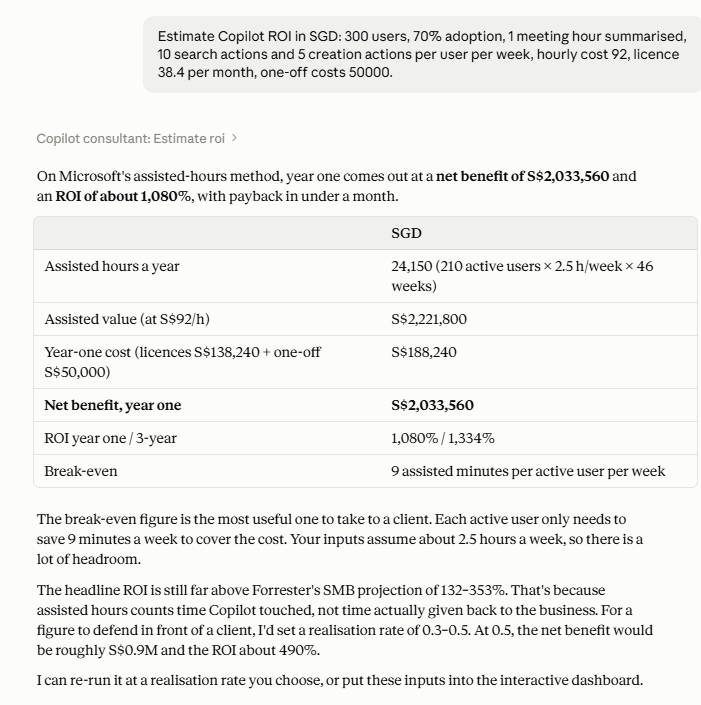
- Calculates ROI with Microsoft's Copilot assisted hours method, in US$ or S$, with payback, break-even and a Forrester benchmark.
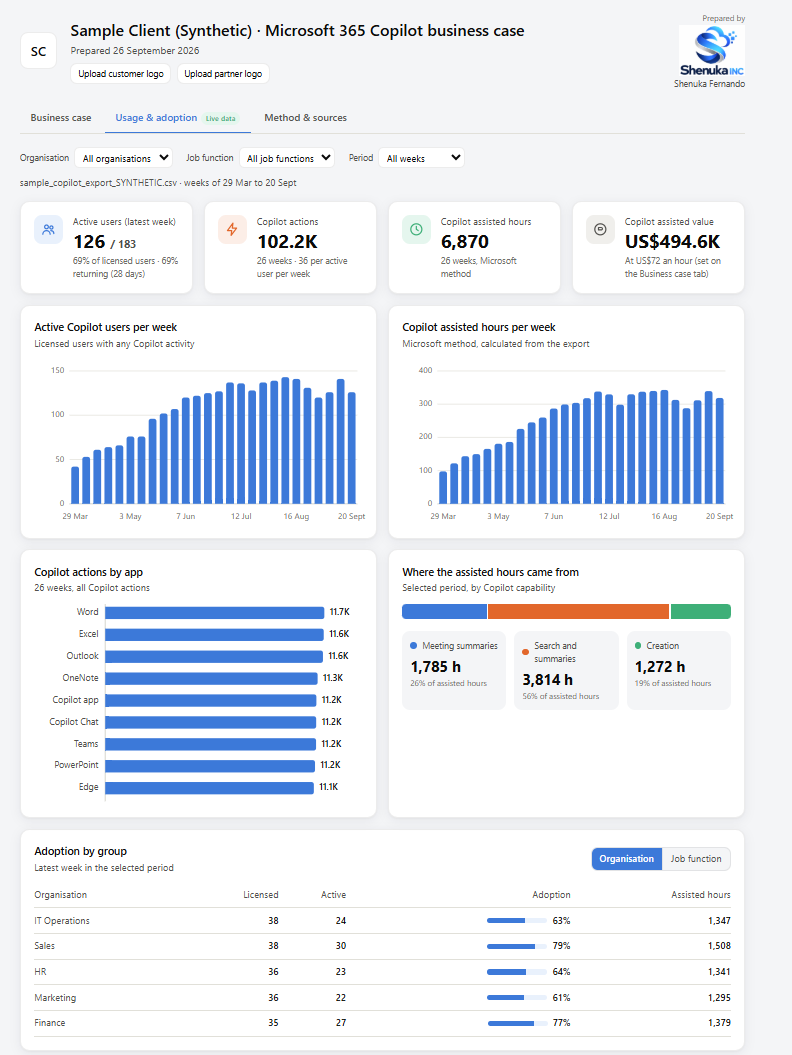
- Reads real usage data from a Copilot Dashboard export, or downloads Microsoft 365 Copilot usage reports from Microsoft Graph.
- Builds the deliverables: an interactive HTML dashboard and a PowerPoint deck with native, editable charts.
It has 10 tools, 2 reference resources and a discovery-call prompt. I use it in Claude Desktop, and the repo has setup steps for Claude Code, the OpenAI Codex app, ChatGPT (developer mode), Copilot Studio and Copilot Cowork.
Running inside Claude Desktop
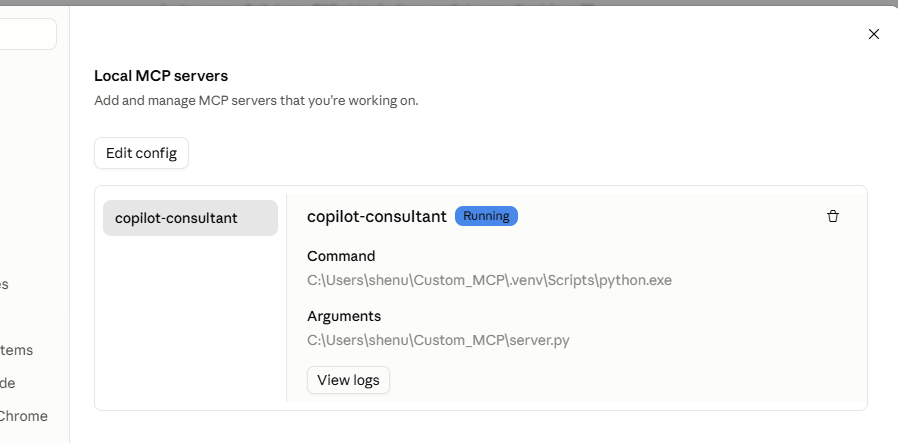
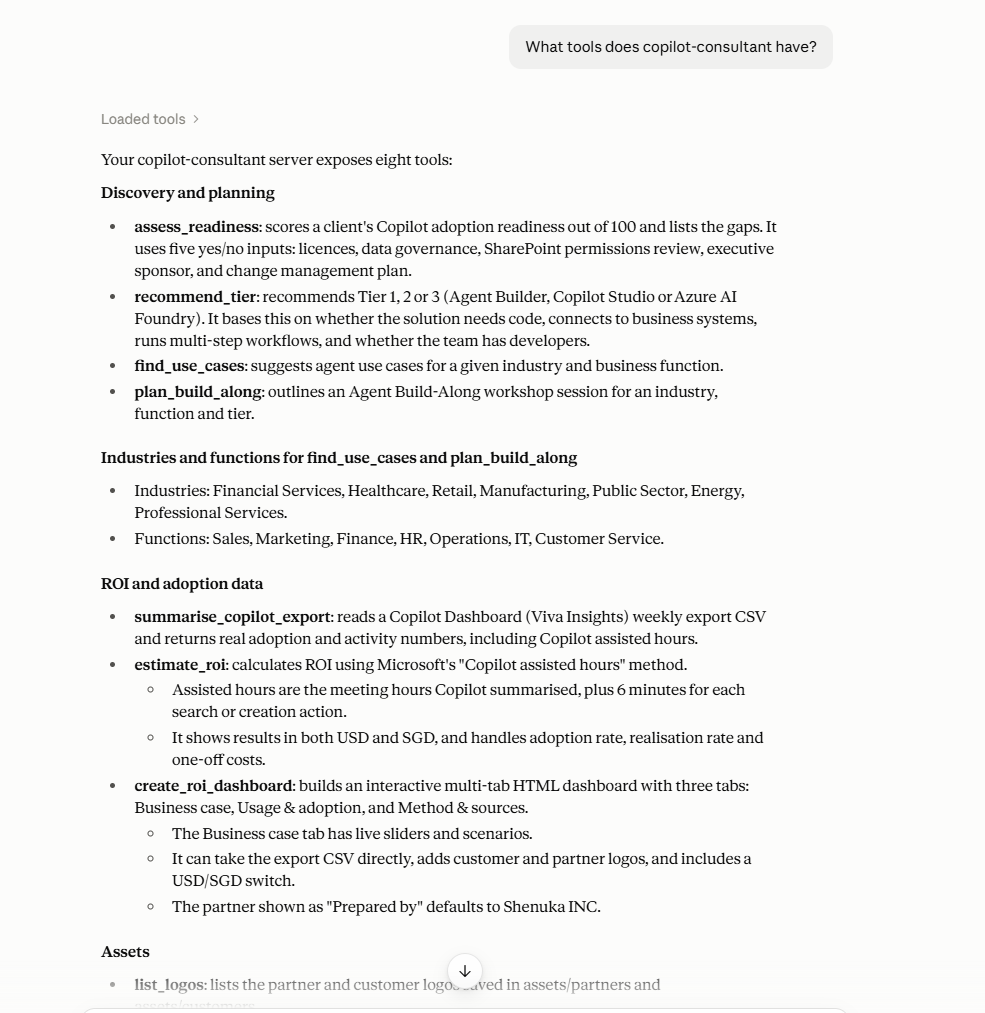
On my Windows laptop, Claude Desktop starts the server itself, so there's no hosting and no URL. Once it shows as Running, I just talk to Claude and it picks the right tool.
Discovery and planning
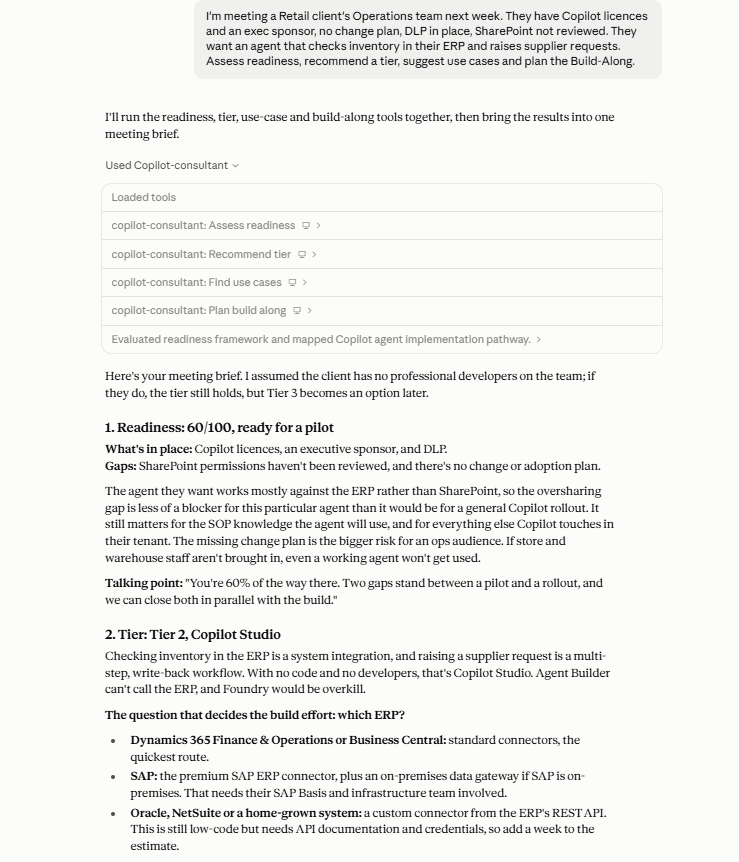
This is where most of my client conversations start. In one prompt, I describe the client and Claude calls four tools (readiness, tier, use cases and Build-Along plan) and writes a meeting brief.
I'm meeting a Retail client's Operations team next week.
They have Copilot licences and an exec sponsor, no change plan,
DLP in place, SharePoint not reviewed. They want an agent that
checks inventory in their ERP and raises supplier requests.
Assess readiness, recommend a tier, suggest use cases and plan
the Build-Along.
Claude can also turn the readiness result into a visual. This infographic was made by Claude in the chat from the tool's output, not by the MCP itself:
ROI, the Microsoft way
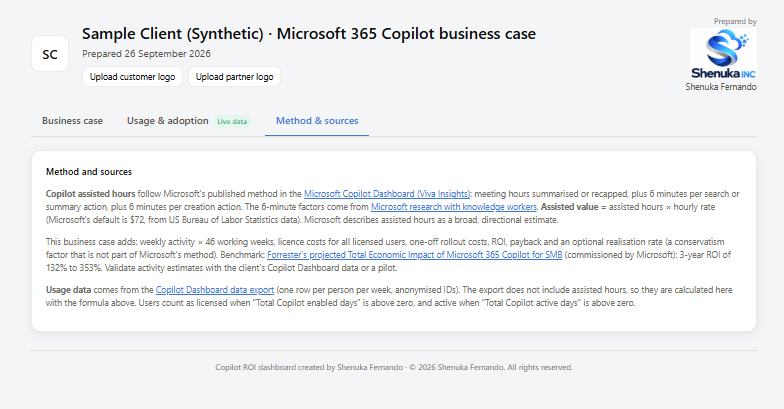
The value side follows Microsoft's published Copilot assisted hours method from the Copilot Dashboard in Viva Insights: meeting hours summarised or recapped, plus 6 minutes per search or summary action, plus 6 minutes per creation action. Assisted hours × hourly cost gives the assisted value.
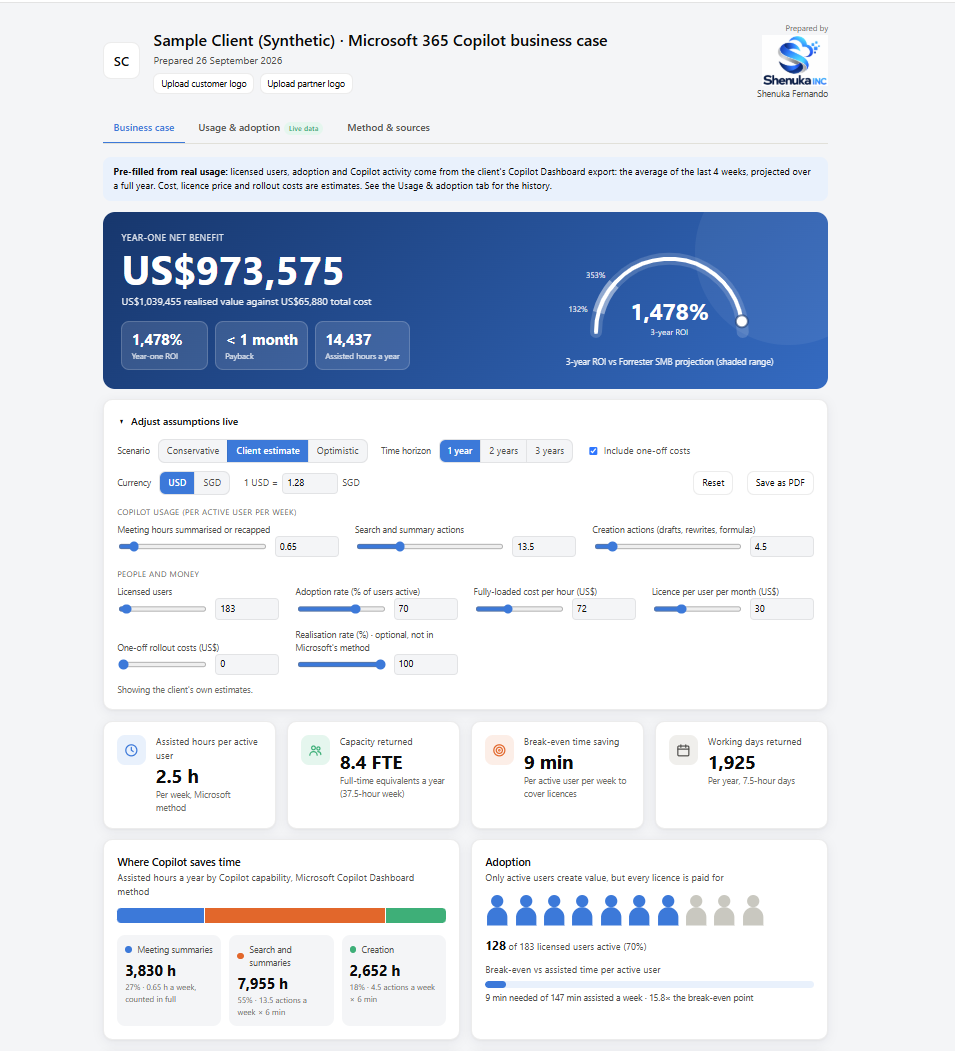
On top of that, the MCP adds the business-case steps: licence and rollout costs, year-one and 3-year ROI, payback, break-even minutes per user, and a comparison with Forrester's projected Total Economic Impact study for SMB (commissioned by Microsoft). It works in US$ or S$, and it asks for the hourly cost, licence price and rollout costs instead of guessing them.
The interactive dashboard
One prompt creates a single HTML file with three tabs. The client can move sliders, switch scenarios and currency, and upload their logo. Nothing needs a server; it's just a file you can email or open in a browser.
Real usage data: export or Microsoft Graph
There are two ways to feed in real numbers:
- Copilot Dashboard export. In Viva Insights, Export data > Export by week gives six months of per-person activity. The MCP matches Microsoft's metric names and calculates assisted hours per week, organisation and function.
- Microsoft Graph Copilot usage reports (v2). The
download_copilot_usagetool downloads the user detail, summary and trend reports to your Downloads folder. An admin signs in in the browser with their own account and MFA. The app registration uses the delegatedReports.Read.Allpermission, so no client secret is stored on the PC.
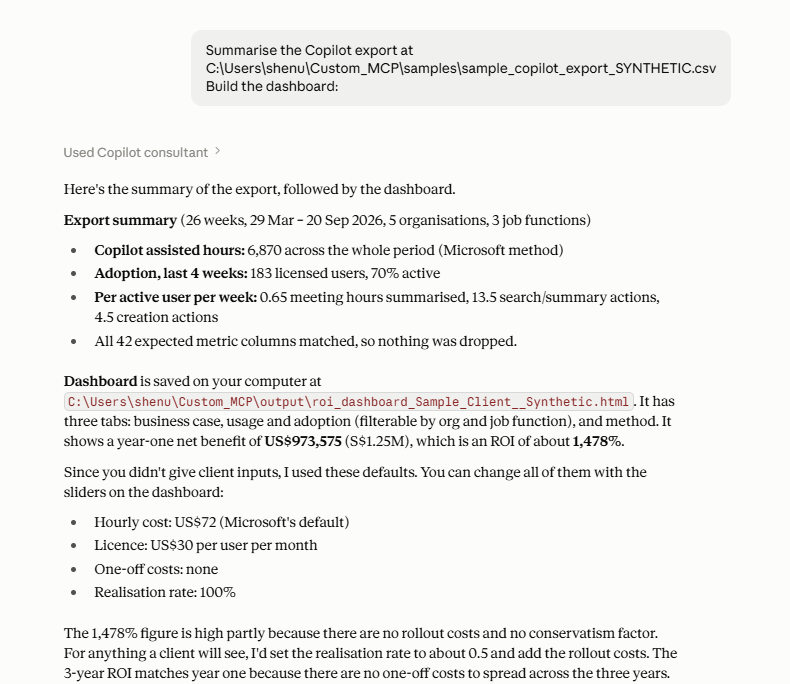
Graph gives adoption, prompts and active days, but not meeting hours or creation actions. So from Graph alone, the tool reports a prompt-based lower bound and asks for the rest.
The client deck
The create_client_deck tool builds a PowerPoint deck: title, clickable agenda, readiness, roadmap, use cases, business case, value over time, usage, Build-Along and a method slide. Charts are native PowerPoint charts, so you can select one and choose Edit Data. Every slide has speaker notes, and you can give it your own widescreen template. There's an example in the repo: Sample_Copilot_Deck_Contoso.pptx.
Why an MCP, and not just Skills or Researcher?
You absolutely can get an HTML dashboard from Copilot Chat or Researcher today. The difference is trust and repeatability. Skills teach the AI how; MCP gives it hands.
- Same inputs, same answer. The ROI maths is in code, not re-derived by the model on each run.
- Same deliverable for every client. The same dashboard and editable deck, not a new layout each time.
- Works beyond Microsoft 365. Claude, ChatGPT and Copilot Studio too, including in pre-sales before a client has Copilot.
- Less data sent to the AI. Exports are processed on your PC, and only a summary goes to the model.
And it isn't either/or. The Copilot Cowork package in the repo is literally a skill plus this MCP: Researcher for the story, MCP for the numbers.
Getting started
What you need: Windows, Python and Git, plus Claude Desktop (or another MCP app). For the Graph download, you also need an admin in a tenant with Copilot licences.
- Clone the repo and install the libraries (PowerShell):
cd C:\Users\<you>
git clone https://github.com/shenukaf69/Custom_MCP.git
cd Custom_MCP
python -m venv .venv
.venv\Scripts\Activate.ps1
pip install -r requirements.txt
python demo.py
python demo.pyprints sample results and opens a sample dashboard, with no AI app needed.- In Claude Desktop, open Settings > Developer > Edit Config and add the server to
claude_desktop_config.json:
"mcpServers": {
  "copilot-consultant": {
    "command": "C:\\Users\\<you>\\Custom_MCP\\.venv\\Scripts\\python.exe",
    "args": ["C:\\Users\\<you>\\Custom_MCP\\server.py"]
  }
}
- Fully quit Claude (tray icon > Quit) and reopen it. The server should show as Running.
- Ask: "What tools does copilot-consultant have?" Then try the prompts in TRY_IT.md.
For ChatGPT, Copilot Studio or Copilot Cowork, the server runs as a web service (python server.py --http) behind a public HTTPS address, such as a Dev Tunnel or Azure Container Apps. The steps are in INSTALL.md and DEPLOYMENT.md. Agent Builder can't add MCP servers, so for Microsoft 365 Copilot the route is a Copilot Studio agent or a declarative agent.
A few honest notes
- What I've tested: the discovery, ROI, export and dashboard tools in Claude Desktop on Windows (the screenshots above are real runs), the deck through the demo script, and the web-service mode in a local test.
- Not yet tested end to end: the hosted setups in Copilot Studio, Cowork and ChatGPT. The steps are documented from Microsoft's and OpenAI's docs, but I haven't run them in a live tenant yet.
- The Graph download has been tested against a simulated Graph service, not a real tenant. Its first real run will be the real test.
- Assisted hours are an estimate. Microsoft calls them directional, not a guaranteed saving. The Forrester figures are a projected study commissioned by Microsoft.
- Data requirements: the Copilot Dashboard export is a preview feature and needs at least 50 Copilot or Viva Insights licences. The Graph reports cover licensed users only.
- Fixed values: the exchange rate (1 USD = 1.28 SGD), Microsoft's factors and the benchmark are in the code and don't update themselves.
- Be careful with client data. Whatever a tool returns is sent to your AI provider. The per-user CSVs stay on your PC, but only use real client data where your agreements allow it. If you host the server, protect it with an API key or OAuth.
- Sample data is synthetic. "Demo Client" and "Contoso" are made up.
📦 GitHub repo: github.com/shenukaf69/Custom_MCP
⬇️ Download: ZIP of the latest version (Releases page; no tagged releases yet)
📖 Docs: README · Install guide · Try it · Graph setup · Hosting
If this is useful, a ⭐ on GitHub or a comment with feedback would mean a lot. What would you automate first?
The Copilot Consultant MCP is an independent project by Shenuka Fernando. It is not an official Microsoft product and is not endorsed by Microsoft. Microsoft 365, Microsoft Copilot, Copilot Studio, Viva Insights, Microsoft Graph, Microsoft Entra, PowerPoint and Azure are trademarks of the Microsoft group of companies. Claude is a trademark of Anthropic, and ChatGPT and Codex are trademarks of OpenAI. Other names may be trademarks of their respective owners.
Comments
Post a Comment